

Basic Computer Science is an important topic in Science and Technology that deals with the fundamental concepts of computers, including hardware, software, data processing, and programming. It forms the foundation for understanding how digital systems work and how information is stored, processed, and communicated.
Under this topic, we will study the basic components of computers, operating systems, input-output devices, and their applications in daily life and various fields.
Fundamentals of Computer Science
What is a Computer System?
A computer system is a programmable digital electronic device. It accepts input in the form of data, processes this data based on program instructions, and outputs information in a desired format for meaningful use.
Characteristics of Computer
- Speed: Very high speed; executes millions of instructions per second.
- Accuracy: Performs all tasks and calculations accurately; errors are usually human mistakes or due to computer malfunction (e.g., virus).
- Diligence: Works continuously for hours without getting tired or losing concentration/speed.
- Power of Remembering (Memory): Has memory to store vast amounts of data (crores of data) for later retrieval.
- Versatility: Can perform many different jobs across various fields (Schools, Hospitals, Offices, Research, Entertainment, etc.).
- Automation: Performs tasks automatically, saving time and money.
- Storage: Vast capacity to store data (crores of files).
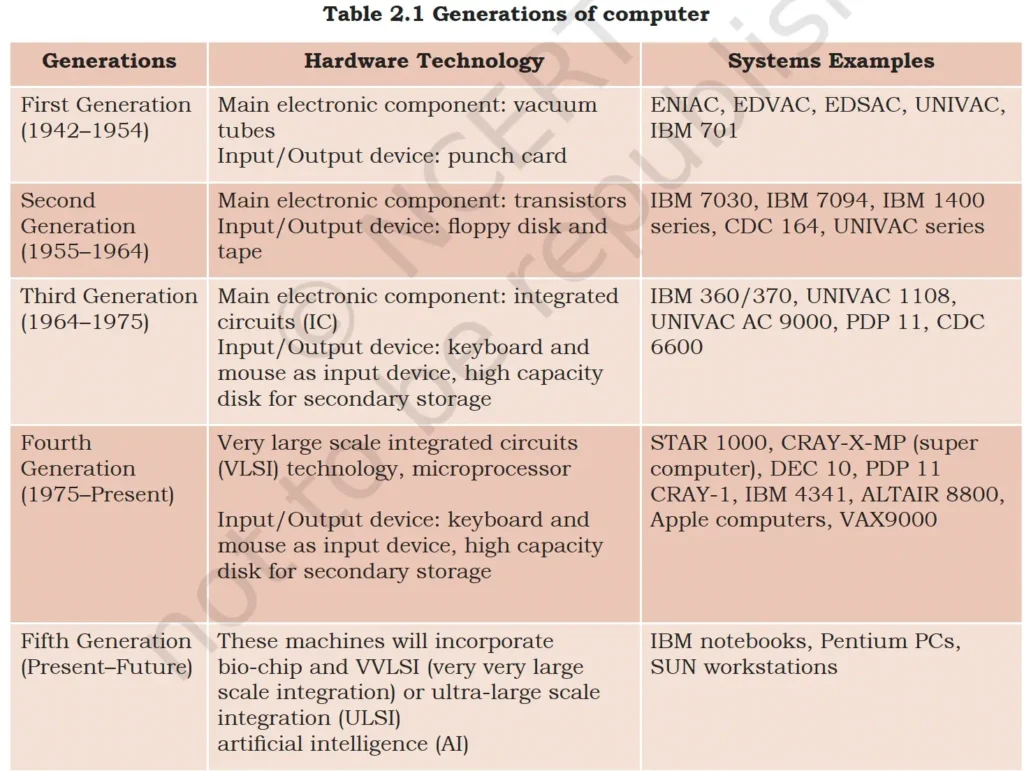
Computer Generation
The evolution of computer has been divided into five generation.
Classification of Computers
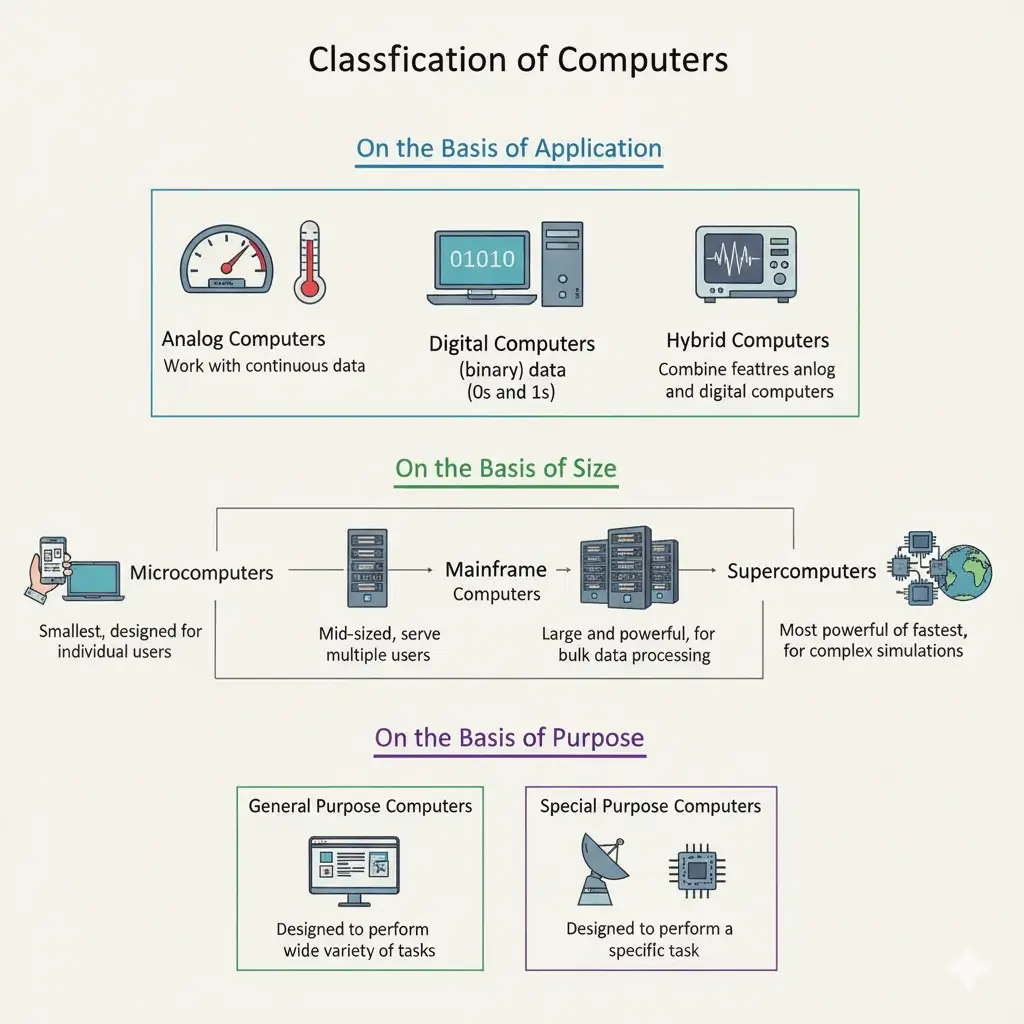
Classification of Computers
- On the Basis of Application/Functioning
- Analog Computers
- Work with continuous data.
- Examples: Speedometer, Thermometer.
- Digital Computers
- Work with discrete (binary) data (0s and 1s).
- Examples: PCs, Laptops.
- Hybrid Computers
- Combine features of analog and digital computers.
- Examples: ECG machines in hospitals.
- Analog Computers
- On the Basis of Size
- Microcomputers
- Smallest, designed for individual users.
- Subclassification: Desktop computer, Laptop computer, Palmtop computer, Notebook, Tablet computer
- Minicomputers
- Mid-sized, less powerful than mainframes but serve multiple users.
- Used in industries and small organizations.
- Mainframe Computers
- Large and powerful, used by big organizations for bulk data processing.
- Examples: Banking, Railway reservations.
- Supercomputers
- Most powerful and fastest computers.
- Used for weather forecasting, nuclear simulations, space research.
- Examples: CRAY X-MP, PARAM, Summit.
- Microcomputers
- On the Basis of Purpose
- General Purpose Computers
- Designed to perform a wide variety of tasks.
- Examples: Personal Computers (PCs), Laptops.
- Special Purpose Computers
- Designed to perform a specific task.
- Examples: Embedded Systems, Weather Forecasting Computers.
- General Purpose Computers
Supercomputer
- A supercomputer is a high-performance computing system capable of processing massive volumes of data at extremely high speeds – measured in FLOPS (Floating Point Operations Per Second).
- Used in fields like climate modeling, drug discovery, AI, astrophysics, and defense.
India’s Supercomputing Timeline (1986–2025)
Year | Milestone/Event |
1986 |
|
1988 |
|
1991 |
|
2002 |
|
2015 |
|
2020 |
|
2022 |
|
2023 |
|
2024 |
|
TOP500 Supercomputers (June 2025)
| Rank | Supercomputer | Country |
| 1 | El Capitan (1.742 ExaFLOPS) | USA |
| 2 | Frontier | |
| 3 | Aurora | |
| 4 | JUPITER Booster | EU (Germany) |
| 5 | Eagle (Azure)- Highest ranked cloud supercomputer | USA |
| 162 | AIRAWAT (AI Research, Analytics, and Knowledge Dissemination Platform) | India |
| Other Supercomputers of India: Arka, Arunika, Pratyush, Mihir. |
Note:
| World | India | |
| First mechanical calculating device | Abacus | |
| First Computer | ENIAC | TIFRAC/Siddhartha |
| First Supercomputer | CRAY-1 (1976) | PARAM 8000 |
| Father of Supercomputer | Seymour Cray | Vijay Pandurang Bhatkar |
| Fastest Supercomputer | El Capitan (USA) | AIRAWAT |
National Supercomputing Mission (NSM)
- Launched: 2015, with a 7-year timeline (2015-2022) and a budget of ₹4,500 crore.
- Aim: To connect national R&D and academic institutions using the National Knowledge Network grid, linking them to over 70 High-Performance Computing (HPC) facilities.
- Objectives: Establish an ecosystem that positions India as a major power in supercomputing, achieving global competitiveness and self-reliance in the HPC domain.
- Steered by: The Department of Science & Technology (DST) and the Ministry of Electronics & IT (MeitY).
- Implemented by: C-DAC (Pune) and IISc (Bengaluru).
- Achievements of the mission
- HPC Capacity: A total capacity of 24.83 PetaFlops (PF) in HPC machines has been built.
- Examples: PARAM Siddhi-AI (5.26 PF, ranked among the Top 100 globally), PARAM Pravega (3.3 PF, IISc Bengaluru), PARAM Shivay (IIT-BHU), and PARAM Shakti (IIT-Kharagpur).
- Indigenous Development: Development of key indigenous components, including the Rudra server board 1.0, Trinetra HPC interconnects, HPC system software stack 1.1, and various benchmark applications (for cloud and HPC).
- HPC Capacity: A total capacity of 24.83 PetaFlops (PF) in HPC machines has been built.
Components of a Computer System
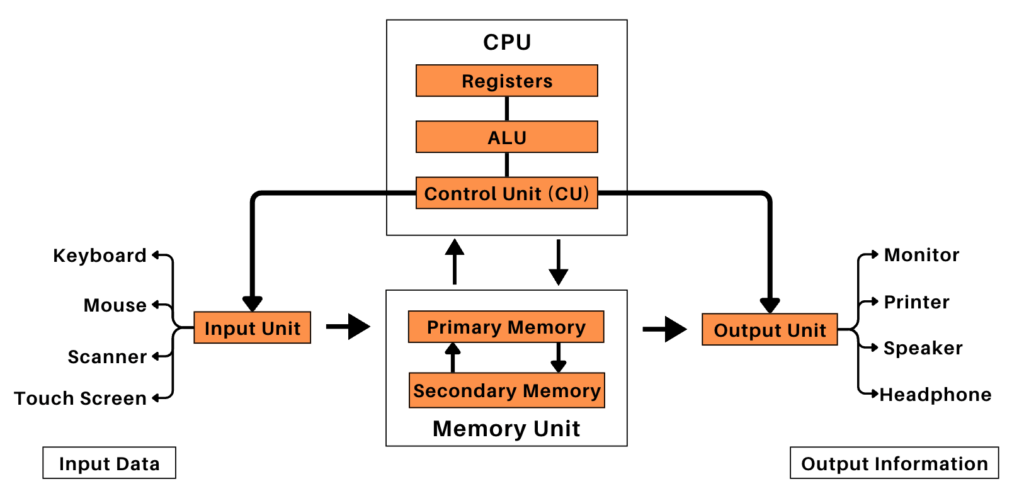
A computer system comprises four basic components or functional units. These components are:
- Input Devices (Input Unit)
- Central Processing Unit (CPU)
- System Memory (Memory Unit)
- Output Devices (Output Unit)
Computer Block Diagram and Working Process
John von Neumann proposed the first usable draft of a working computer.
Input Unit → Memory Unit → CPU → Output Unit.
Input Devices (Input Unit)
- The hardware devices that send input data from the user to the CPU are known as Input Devices.
- They are responsible for:
- capturing, and transferring data and information from the outside world into the computer system.
- converting instructions into machine language.
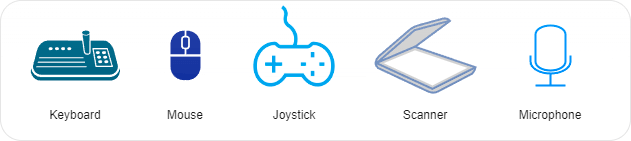
- Some common Input Devices are Keyboard, Mouse, Joystick, Scanner, Microphone, Touchpad, Biometric Sensors, Graphic Tablet, Bar/QR Code Readers, Webcam, Magnetic Ink Character Reader (MICR) and Optical Character Reader (OCR) devices etc.
1. Key Board
Types of Keys on Keyboard
| Key Type | Description & Example |
| Alphanumeric Keys | Letters (A–Z) and Numbers (0–9) used for typing text and numbers. |
| Numeric Keys | Digits and mathematical operators on the right side of the keyboard. |
| Function Keys | Programmable keys (F1 to F12) used for specific actions in programs. |
| Cursor Control Keys | Arrow keys (↑ ↓ ← →), Home, End, Page Up, Page Down for moving the cursor. |
| Character Keys | Used to write special characters or marks, like – @, $ etc. |
| Special Purpose Keys | Various special-purpose keys: Control (Ctrl), Enter, Shift etc. |
- Key facts about computer keyboard types and keys:
- Standard Key Count: Keyboards typically have between 101 and 108 keys.
- QWERTY Keyboard: This common layout has a total of 104 keys.
- Toggle Keys: Caps Lock and Num Lock are designated as ‘toggle keys’ because pressing them changes their status (or state) between ‘on’ and ‘off’.
- Modifier Keys:Shift, Ctrl, and Alt keys are known as Modifier Keys as they alter the function of other keys when used in combination.
Special Purpose Keys
| Control (Ctrl) Key | Used in combination for special commands (e.g., Ctrl+C for copy). |
| Return/Enter Key | To finish an entry or begin a new entry in a document. |
| Shift Key | Types upper symbols or capital letters. |
| Escape Key (Esc) | Cancels or aborts operations or opens the Start menu (with Ctrl). |
| Backspace Key | Used to erase characters to the left of the cursor. |
| Delete Key | Deletes characters or data ahead of the cursor. |
| Caps Lock Key | Used to type the alphabet in capital letters (Toggles uppercase typing). |
| Num Lock Key | Enables/disables numeric keypad. |
| Windows Key | Open the Start menu. |
| Tab Key | Moves cursor to the next tab stop or indents paragraphs. |
| Home Key | Moves the cursor to the beginning of the document or line. |
| Insert Key | Used for inserting a character between existing text. |
Pointing Device
- A pointing device is an input interface that allows a user to input spatial data to a computer.
- The Keyboard is not a pointing device.
- Some Examples of Pointing Devices:
- Mouse: A hand-held device with buttons and a scroll wheel that moves a cursor on a screen.
- Trackpad: A touch-sensitive surface on a laptop that acts as a mouse.
- Touchscreen: A device that eliminates the need for a separate pointing device.
- Stylus: A device often used on touchscreens, such as on smartphones or graphics tablets.
- Trackball: A device with a ball in a socket that has sensors to detect the ball’s rotation. Trackballs are commonly used on CAD workstations.
- Joystick: A lever that moves in multiple directions to navigate a cursor on a computer screen. Joysticks are often used for playing games.
- Air mouse: Also known as a gyroscopic mouse, this device senses its orientation in the air and allows the user to control the cursor by moving the device.
- 3D mouse: Used in computer-aided design (CAD) applications.
Some Other Input Devices
Device | Function & Example |
Barcode Reader |
|
Optical Mark Reader (OMR) |
|
Optical Character Recognition (OCR) |
|
Magnetic Ink Character Recognition (MICR) |
|
Smart Card Reader |
|
Biometric Sensor |
|
Output Devices (Output Unit)
- The hardware devices that are responsible for displaying output from the computer are known as Output Devices.
- Some of the popular Output Devices are Display Monitor, Projector, Speaker, Printer, Plotter, Headphones etc.
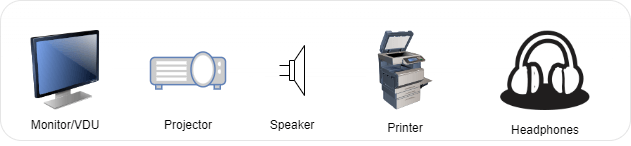
1. Monitor
- The user interacts with a computer through monitor. It is Television shaped and is also called Visual Display Unit (VDU).
- There are mainly two types of monitor in a Micro Computer:
- CRT Monitor (Cathode Ray Tube):
- Its screen is coated with phosphors material (luminescent substance).
- When CRT sends electrons on the screen it starts shining.
- FPD (Flat Panel Display) Monitor:
- They use liquid crystals, plasma, or electroluminescent materials instead of electron beams.
- They have low resolution.
- F.P.D. Monitors are of three types:
- Liquid Crystal Display Monitors (LCD)
- Gas Plasma Display Monitor (GPD)
- Electroluminescent Display Monitor (ELD).
- LCD monitor has low resolution and the display on the screen is of poor quality. GPD and ELD have greater resolution compared to LCD but they are far too expensive.
- CRT Monitor (Cathode Ray Tube):
Comparison of Display Technologies
Technology | Working Principle | Advantages | Limitations |
LCD (Liquid Crystal Display) | Uses liquid crystals + backlight to control light passage |
|
|
LED (Light Emitting Diode Display) | LCD panel + LED backlight (edge-lit or direct-lit) |
|
|
OLED (Organic LED) | Organic emissive materials emit light when current passes |
|
|
MicroLED | Inorganic microscopic LEDs self-illuminate per pixel |
|
|
Some Important Points
- Pixels: Any image on the screen is made up of tiny dots, these tiny dots are called pixels.
- Resolution: Refers to the total number of pixels displayed on the screen, usually expressed as: Width × Height.
- Measured in Pixel Density.
- PPI (Pixels Per Inch): Pixel density of digital displays.
- DPI (Dots Per Inch): Printing resolution (printers).
- Resolution signifies the quality of image on the screen.
- Higher resolution (↑pixels) means higher image detail, clarity, and sharpness.
- Common Standards (16:9 Aspect Ratio):
- HD (720p): 1280×720 pixels.
- Full HD (FHD / 1080p): 1920×1080 pixels (≈2 Megapixels).
- Quad HD (QHD / 1440p): 2560×1440 pixels.
- Ultra HD (UHD / 4K): 3840×2160 pixels (Exactly four times the total pixels of 1080p).
- Measured in Pixel Density.
2. Printer
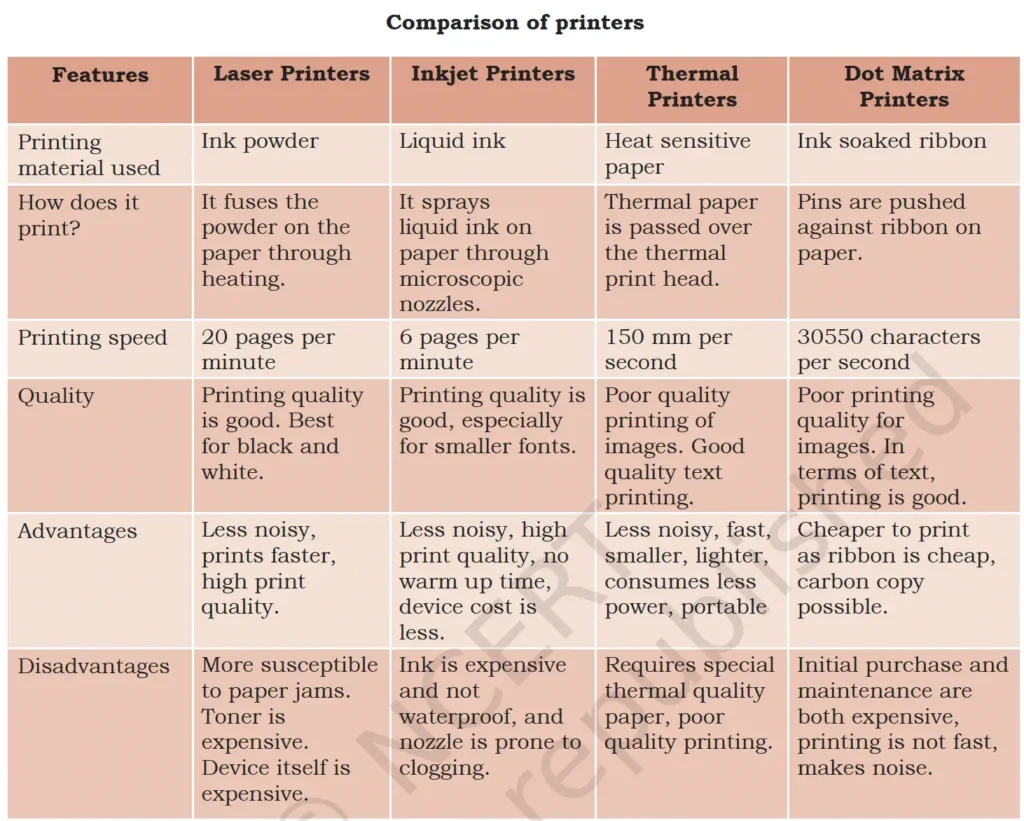
- A printer produces hard copies of the processed data. It enables the user to print images, text or any other information onto the paper.
Types of Printers
- Impact Printers: These physically strike the paper to print – like typewriters. They are of two types:
- Character Printers
- Dot Matrix: Uses pins to strike ink ribbon; low-cost, noisy; used in billing, banking.
- Daisy Wheel: Letter-quality printing; slow; obsolete.
- Line printers: Print entire line at once; used in large-scale data centers.
- Drum printers
- Chain printers
- Character Printers
- Non-Impact Printers: These use ink or heat without striking the paper.
- Inkjet Printer: Sprays tiny ink droplets; good for color and photo printing; affordable.
- Laser Printer: Uses laser beam and toner; fast, high-quality; ideal for office use.
- Thermal Printer: Uses heat-sensitive paper; common in POS systems, ATMs, ticketing.
3. Plotter
- Plotter is used to print large map, charts, three dimensional line diagrams, design and electronic circuits.
- It is an output device by which we can print the graphics. It is used to make banner, poster.
- Generally plotters are two types: Drum Pen Plotter and Flat Bed Plotter.
Examples of both input and output devices:
- Modems and network cards.
- Headsets (the headphones are output, the microphone is input).
- Fax machines (the scanner is input, the printer is output).
- Universal Serial Bus (USB) Drives (Data read from drive – Input, Data written to drive for storage – Output).
- Touchscreen
- A touchscreen is a display screen that responds to touch.
- It is an output device because it displays information (like a monitor), and it’s an input device because it allows users to interact with the computer by touching the screen with a finger or stylus.
- This two-way communication makes it a combined input/output device.
Central Processing Unit (CPU)
- The CPU (Central Processing Unit) is the “brain” of a computer. The CPU is fabricated as a single Integrated Circuit (IC) and is also known as microprocessor.
- The CPU works in tandem with the memory and input/output units to ensure smooth operation of the system.
Functions of the CPU:
- The CPU retrieves program instructions and data from the memory.
- It performs all arithmetic and logical operations specified in the instructions.
- The processed results are stored back in the memory.
CPU Components:
- Registers:
- Local memory within the CPU for temporarily storing data, instructions, and intermediate results.
- Registers are limited in size and number. It is fastest but also smallest in size.
- Arithmetic Logic Unit (ALU):
- Executes all arithmetic and logical operations required by the program.
- Control Unit (CU):
- Oversees sequential instruction execution.
- Interprets instructions and manages data flow between memory, the ALU, and input/output devices.
System Memory (Memory Unit)
- This unit is responsible for storing programs or data on a temporary or permanent basis.
- The Memory of a computer is divided into Primary (main memory), Cache and Secondary (auxiliary memory) Memory.
1. Primary (Main) memory
- It is the main memory of a computer. It is used to store data and instructions during the processing of data.
- It is a temporary memory and is volatile. It is directly accessed by the CPU.
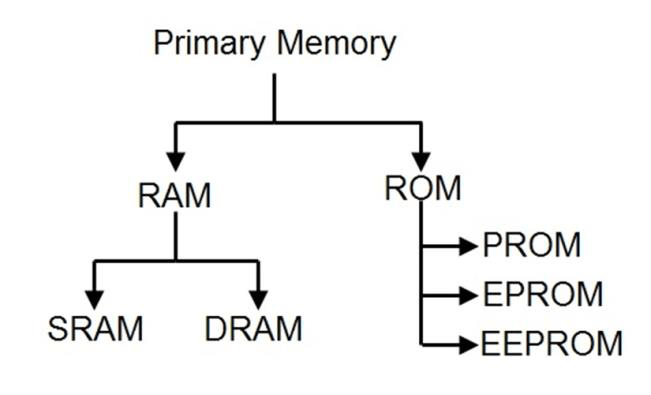
- It is semiconductor memory and is of two kinds – Random Access Memory (RAM) and Read-Only Memory (ROM).
Comparison of RAM and ROM
| RAM | ROM |
| Random Access Memory.(It is a read/write type of memory and thus can be read and written by the user.) | Read Only Memory.(User can read only, not able to write) |
| It is Volatile or temporary memory. | It is Non Volatile or permanent memory. |
| Data gets erased when power supply is off. | Data stored permanently. |
| Faster memory. | Slow memory. |
| It is used in normal operations after OS loading. | A ROM chip is used during computer startup (BIOS – Basic Input Output System). |
| Types: SRAM (Static RAM)DRAM (Dynamic RAM) | Types:PROM (Programmable ROM)EPROM (Erasable PROM)EEPROM (Electrically Erasable PROM) |
2. Auxiliary/Secondary/External Memory
- Data in secondary memory cannot be processed directly by the CPU, it must first be copied into primary memory.
- Secondary memory is also known as permanent memory.
- It is non-volatile in nature, i.e the data does not get lost even after power is turned off from the computer.
Key Types of Secondary Storage
Type of Storage | Description and Examples |
Solid State Storage |
|
Optical Storage |
|
Magnetic Storage |
|
3. Cache Memory
- Cache memory is an intermediate memory between the CPU and the main memory.
- The need for cache memory arises from the difference in operational speed of the CPU and the primary memory.
- It is used to hold those parts of data and programs which are most frequently used by CPU.
Flash memory: A kind of memory that retains data in the absence of a power supply.
Some Important Points
- Registers: These are the smallest and fastest storage units, located directly on the CPU. They are volatile.
- Cache: This is a small, very fast memory that stores frequently accessed data from RAM to speed up the CPU. It’s also volatile.
- RAM (Random Access Memory): This is the main memory, providing fast but temporary access for the CPU. It’s volatile.
- Hard Disk Drive (HDD) / Solid State Drive (SSD): These are forms of secondary storage. They are the largest and slowest units in the hierarchy, but they are non-volatile, making them ideal for storing data permanently, like the operating system, applications, and user files. They retain data even when the computer is shut down.
Memory Hierarchy
- The memory hierarchy organizes memory types based on their speed, size, cost, and proximity to the CPU, optimizing performance.
- Memory Hierarchy: Registers → Cache → RAM → Hard Disk (Fast → Slow).
Comparison of different types of memory
| Storage | Speed | Capacity | Relative Cost | Volatile |
| Registers | Fastest | Lowest | Highest | Yes |
| Cache | Faster | Low | Very high | Yes |
| RAM/ROM | Fast | Low/Moderate | High | RAM → Yes/ROM →No |
| Hard Disk | Moderate | Very high | Very low | No |
Basic Units of Memory Measurement
- Bit is the smallest unit capable of storing information. Each bit operates as a binary switch, effectively storing a single value of either 0 or 1.
- GeopByte is the highest memory measurement unit.
- A byte can represent 256 (0-255 or 28) distinct values.
- Word: A Word is a fixed length sequence of bits which the processor can handle at a time.
- Group of bits on which the CPU can work as a single unit. Can be 8 bits, 16 bits, 32 bits or 64 bits depending on CPU Architecture.
- Bit < Nibble < Byte < Kilobyte < Megabyte < Gigabyte < Terabyte < Petabyte < Exabyte < Zettabyte < Yottabyte.
| Memory Unit | Equivalent |
| 1 Bit | 0 or 1 (Binary Digit) |
| 4 Bits | 1 Nibble |
| 8 Bits | 1 Byte (2 Nibbles) |
| 1024 Bytes | 1 KB (Kilobyte) |
| 1024 KB | 1 MB (Megabyte) |
| 1024 MB | 1 GB (Gigabyte) |
| 1024 GB | 1 TB (Terabyte) |
| 1024 TB | 1 PB (Petabyte) |
| 1024 PB | 1 EB (Exabyte) |
| 1024 EB | 1 ZB (Zettabyte) |
| 1024 ZB | 1 YB (Yottabyte) |
| 1024 YB | 1 Brontobyte |
| 1024 BB | 1 Geopbyte (largest unit) |
Software & Hardware
A computer system consists of two major components: hardware and software.
Hardware
Hardware represents the physical and tangible components of the computer i.e. the components that can be touched. CPU, keyboard, mouse, printer, speaker etc. are examples of computer hardware. We can not only see them but also touch them.
Software
- To complete the computer work we have to tell the computer what it is supposed to do. We have to instruct the computer.
- These instructions are called software. The set of these instructions is called program.
- It represents the set of programs that govern the operations of a computer system and make the hardware run smoothly.
- Software is in the electronic form which cannot be seen or touched.
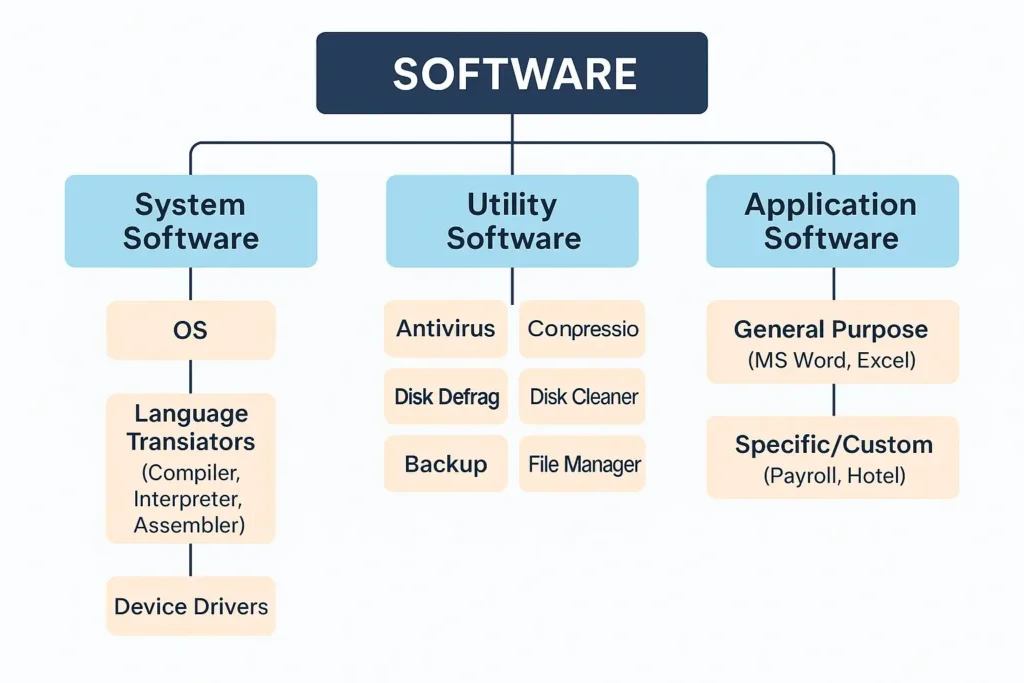
Types of Software
- System Software: This software is mandatory for all computer systems to work. System software also provides the interface between the user and components of the computer. For example: Operating Systems like Windows and language processors like assembler, etc.
- Utility Software: Utility software is considered to be a part of system software. It is used to perform some additional functions which make our computer safer, secure and work smoothly. For example, antivirus, disk defragmenter, etc.
- Application Software: These softwares are made to perform a specific task. For example: WordPad, MS-Word, etc.
System Software
- Operating System (OS): It is a system program that acts as an interface between the user and the machine (computer hardware). It allocates and manages the resources of the computer.
- Language Translator: It is a program used to convert a program written in HLL(High Level Language) or assembly language to machine language.
- Device Driver: It is a program that controls a particular type of device that is attached externally to a computer.
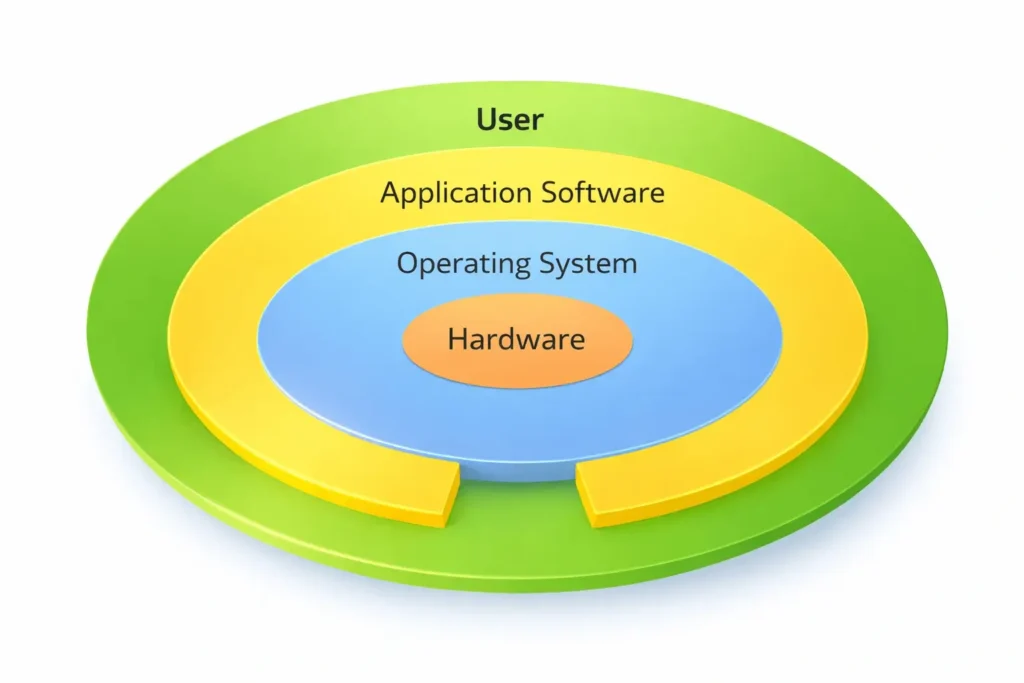
Operating System (OS)
- An Operating System (OS) is a program which acts as an interface between the user and the computer hardware.
- The interface enables a user to utilise hardware resources very efficiently.
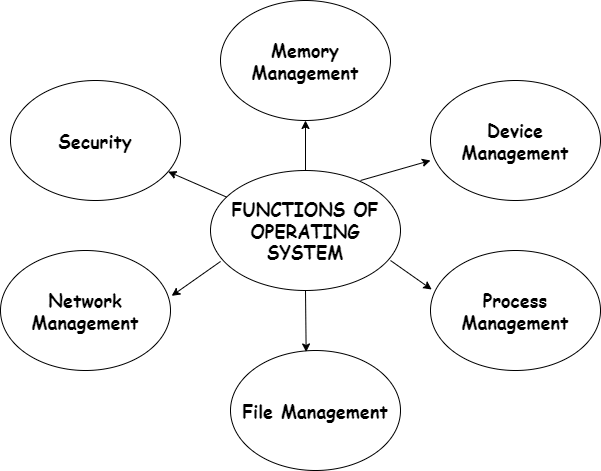
Operating System (OS) User Interface
A feature of a computer system which allows the user to interact with it. Types:
- Command Line Interface (CLI)
- It is also known as Character User Interface (CUI).
- Interaction through typed commands. Requires knowledge of command syntax.
- Efficient but less user-friendly.
- Example: MS-DOS, Linux Terminal.
- Graphical User Interface (GUI)
- Interaction via icons, menus, taskbar, windows, visual metaphors and pointing devices.
- Easy, user-friendly, widely used.
- Example: Windows, macOS, Android.
- Gesture-Based User Interface (GBUI)
- Uses physical gestures (hand, body movement) to operate. Enables touchless interaction.
- Example: Microsoft Kinect, AR/VR systems.
- Voice-Based User Interface (VUI)
- Interaction through voice commands.
- Supports hands-free operation.
- Examples: Siri, Google Assistant, Alexa.
- Touch-Based User Interface (TUI)
- Requires physical touch input via screen or device.
- Common in smartphones, ATMs, kiosks.
- Example: Touchscreens, tablets.
Types of Operating Systems
- Batch Processing OS → Jobs grouped & executed together, no user interaction. OS schedules jobs by priority & resource requirement. Example → UNIX (batch mode).
- Single-User OS → One user, one task at a time. Used in personal computers. Examples → MS-DOS, Windows 9X.
- Single Tasking OS: Can run only one program at a time. Example → Palm OS.
- Multi-User OS → Allows multiple users concurrently. Example → VMS (Virtual Memory System).
- Multi-Tasking OS → Executes multiple processes concurrently. Enables switching between applications. Examples → Linux, UNIX, Windows 95.
- Time-Sharing OS → Multiple programs share resources simultaneously. Each process gets a time slice on CPU. Example → Mac OS (classic versions).
- Distributed OS: Uses multiple central processors to serve multiple real time applications. Examples → Amoeba OS, LOCUS.
- Real-Time OS (RTOS) → Responds to events within strict time limits. Used in military, aviation, healthcare, industrial control. Types:
- Hard Real-Time OS → Tasks must finish within deadlines (e.g., flight control).
- Soft Real-Time OS → Deadlines flexible; occasional delays allowed (e.g., multimedia systems).
Examples of Operating System
- Desktop Operating System
- UNIX: 1969 by Ken Thompson and Dennis Ritchie.
- Apple Macintosh (Mac OS): 1984 by Steve Jobs.
- LlNUX: Open-source, Unix-like, widely used in servers & systems.
- Microsoft Windows: Introduced in 1985 by Microsoft. GUI-based OS, most widely used on PCs.
- MS-DOS (Microsoft Disk Operating System): For micro computers. MS-DOS was the first operating system that ran on PC developed by IBM corporation in 1981.
- Ubuntu (Linux based open source OS).
- Mobile Operating System
- Android: Developed by Google, based on Linux kernel. Latest stable version (from given data): Android 16 – Baklava (June 2025).
- Symbian: Developed by Symbian Ltd. Open-source OS for smartphones. Used by Nokia, Samsung, Motorola, Sony.
- iOS: Developed by Apple Inc. Runs on iPhone, iPad, iPod Touch.
- BlackBerry OS: Developed by BlackBerry Ltd. Known as the most secure mobile OS.
Open-Source Software (OSS)
- Software distributed with its source code, allowing users to use, modify, and redistribute it with original rights.
- Examples: Linux, Mozilla Firefox, VLC Media Player, SugarCRM
- Comparison:
- Closed Source: iOS (Apple) → cannot modify/reverse engineer.
- Open Source: Android (Google), government platforms like DigiLocker, DIKSHA, Aarogya Setu, CoWIN (CoVID-19 vaccination platform).
- Advantages of Open-Source Software
- Cost-effective: Cheaper than proprietary software; increased user control.
- Faster innovation: Leverages crowdsourcing → quicker development & troubleshooting.
- Supports technology growth: Enables indigenous tech development in 5G/6G, AI, IoT, microprocessors.
India Stack
- A platform of open APIs (Application Programming Interface) like – Aadhar, UPI, Co-WIN, Digilocker etc.
Indigenous Operating Systems Developed by India
Operating System | Details |
BharOS (Bharat Operating System) |
|
BOSS (Bharat Operating System Solutions) |
|
Maya OS |
|
Language Translators
Programming Languages
- Languages are majorly divided into two categories: Low Level Languages and High-Level Languages.
- Low Level Languages are nearer to Machine Code than to human-like languages. They are difficult to understand by humans but easily understandable by machines. Types:
- Machine Language (Binary Language) → 0s & 1s. (Based on Boolean Algebra).
- Assembly Language → Uses mnemonics/keywords (e.g., ADD, SUB, STR).
- On the other hand, humans can easily understand high level languages but computers require language translators to convert high level languages into low level languages which they understand.
| FORTRAN | Formula Translation – 1957 by IBM |
| ALGOL | Algorithmic Language |
| LISP | List Processing – Used in Artificial intelligence |
| COBOL | Common Business Oriented Language |
| BASIC | Beginner’s All purpose Symbolic Instruction Code – For educational purpose |
| Pascal | Used in education and software development |
| C & C+ | For system programming |
| Java | Internet oriented programming |
| Python | Simple, multipurpose modern language |
Language Translators
- Software that translates one language to another is called language translators.
- It is a program used to convert a program written in HLL (High Level Language) or assembly language to machine language.
- Language translators can be divided into Compiler, Interpreter and Assembler.
- Compiler: It is a system program which translates a program written in a high level language into its equivalent program in machine language.
- Interpreter: Interpreter converts an HLL program into an equivalent machine language program one line at a time and executes it, if no error is encountered.
- Assembler: Assembler is a system program that converts an assembly language program into the machine language of the host computer.
Encoding Schemes
- Encoding schemes are methods used to convert data (text, images, audio, etc.) into a format suitable for storage, transmission, or processing by computers.
- Process of converting human-readable data into machine-understandable binary form.
- Each character (letters, numbers, symbols) → assigned a unique numerical code.
- Popular schemes → ASCII, ISCII, Unicode.
Scheme | Description |
ASCII |
|
Extended ASCII |
|
ISCII |
|
Unicode (UTF-16) |
|
Unicode (UTF-8) |
|
UTF-32 |
|



